
How to Use Pro Presenter with the ATEM Mini Pro and ATEM Mini Extreme

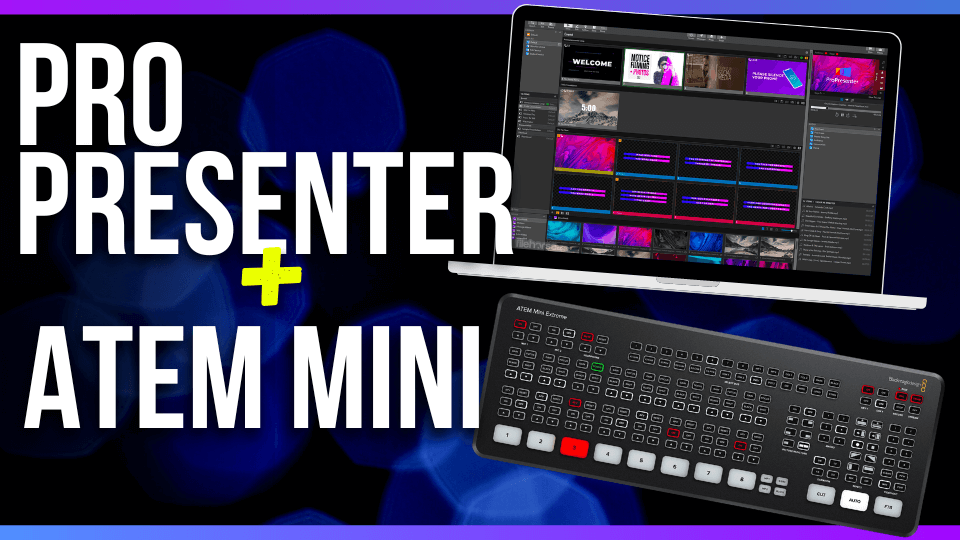
Hello everyone! Today, we’re going to discuss a topic that many of you have been asking about: how to integrate ProPresenter into the ATEM Mini Pro or the ATEM Mini Extreme. This guide will also be applicable if you’re using PowerPoint, Keynote, Easy Worship, or any other similar software.
Pro Presenter and the ATEM Mini Pro/Extreme
Let’s start by taking a look at our setup. We run our live stream off the ATEM Mini Extreme, with the ATEM Extreme receiving input from our ProPresenter machine, a Mac Mini. The HDMI output of the Mac Mini is connected to a screen, while the second HDMI output goes into a splitter. One of the HDMI cables from the splitter goes to the screens in our venue, while the other goes to input number four on the ATEM Extreme.
Using ProPresenter as a Video Feed
We use our ProPresenter machine as another video feed. This means that when we switch to it, it’s going to be full screen unless we’re using the picture-in-picture feature of the ATEM Mini.
If you have a PC or a larger Mac with more HDMI outputs available, you could create a unique output from ProPresenter for the ATEM Mini. This would allow you to do lower thirds with it, meaning the lyrics would overlay the video in the lower third of the screen. However, this requires an additional output and programming ProPresenter with an additional look.
Playing Videos with ProPresenter and ATEM Mini
One of the great things about using ProPresenter with the ATEM Mini is that if you play a video, it comes directly in. For example, we play a countdown video on the screen before going live. This video is also what the live stream sees for 10 minutes leading up to us actually going live.
Camera Setup
Our camera setup includes a PTZ (Pan-Tilt-Zoom) camera as camera one, a keyboard camera as camera two, and a pulpit camera as camera three. We’re currently working on solutions to reposition our cameras to improve the viewing experience.
Conclusion
In conclusion, the easiest way to get ProPresenter from a Mac or any other device into the ATEM Mini Pro or the ATEM Mini Extreme is to plug it into the back and use it like a video source. It’s a simple and effective solution that can greatly enhance your live streaming capabilities.
Great article! Using ProPresenter as a video feed with the ATEM Mini Extreme is a smart way to enhance live streaming. The ability to play videos directly and utilize lower thirds adds an extra level of professionalism to the production. Regarding the camera setup, it’s great to see the inclusion of PTZ, keyboard, and pulpit cameras. Repositioning them for an improved viewing experience will certainly enhance the overall visual quality. As for the cost of scoreboards, it’s important to note that scoreboards can vary significantly in price depending on factors such as size, features, and brand. It’s advisable to research and compare different options to find a scoreboard that fits your specific requirements and budget.