
Why your ATEM Mini Pro camera input is black

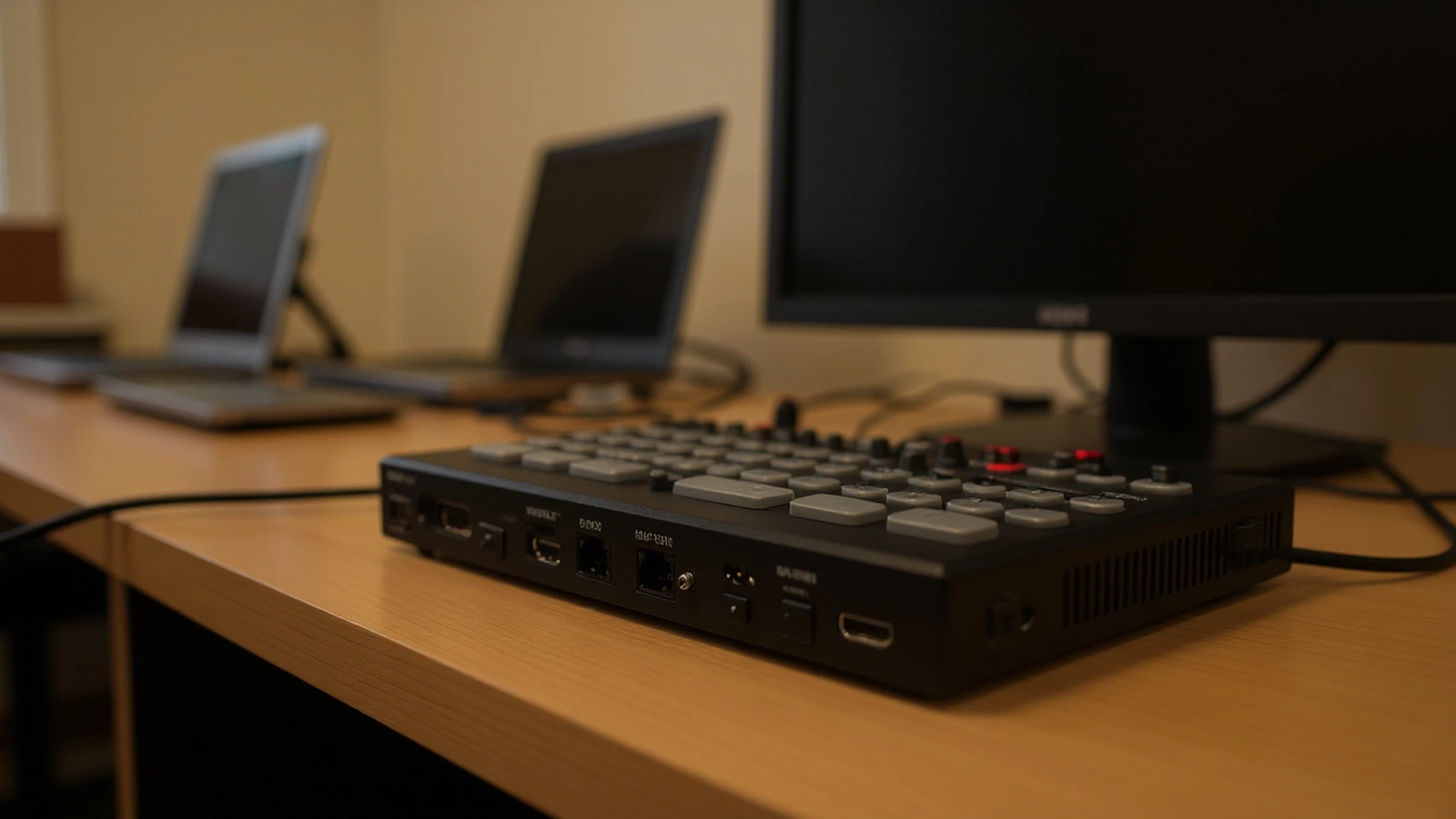
You plug a camera into the ATEM Mini Pro, the camera is clearly powered on, and the input still shows up as a flat black box in the multiview while the other inputs look fine. It almost always happens fifteen minutes before a service, which is the worst possible time to start guessing. The good news is that a black input is rarely a dead switcher, and it usually traces back to one of a handful of causes you can check in order.
We have walked churches through this exact problem more times than we can count, so this guide moves through the likely causes from most common to least, in the order we would check them ourselves. Work top to bottom and you will almost always find the culprit before you reach the end.
Confirm the source is actually sending a signal
Before suspecting the switcher, make sure the device on the other end of the cable is genuinely outputting video, because a powered-on camera is not the same as a camera sending a clean HDMI signal. A PTZ camera that is still booting, sitting on a settings menu, or set to an output other than HDMI will show black even though its status light looks healthy. Give the camera a full minute to finish starting up, and confirm it is set to HDMI output rather than SDI, USB, or IP-only.
If the source is a laptop or a presentation computer, check that it is actually mirroring or extending to the HDMI port rather than treating it as a disconnected display. A quick way to isolate this is to take that same camera or computer and run its HDMI straight into a TV or monitor. If the TV shows the picture but the ATEM does not, the source is fine and the problem is downstream, which narrows your search considerably.
Check the cable, the port, and the connection itself
HDMI is a fussier connection than it looks, and a marginal cable is one of the most common reasons a single input goes black while the others work. Cables fail at the ends, get crimped behind a rack, or were never fully seated in the first place, so reseat both ends with a firm push until they click and confirm the connector is square in the port rather than tilted.
The fastest diagnostic is to swap things around. Move the suspect camera’s cable to an HDMI input you know works, and if the picture appears, the original input or its cable is the issue rather than the camera. Try a different, known-good HDMI cable on the dead input as well, because a cable that worked last month can fail without warning. When the run is long, the problem is often the extender rather than the cable, which we will come to shortly.
Resolution and refresh-rate mismatches
The ATEM Mini Pro is forgiving about input formats, but it is not unlimited, and a source set to a format the switcher cannot accept will read as black. Each of the four HDMI inputs has its own built-in standards converter that accepts 720p, 1080i, and 1080p at 24, 25, 30, 50, and 60 frames per second, then converts each one to the switcher’s program format. According to the Blackmagic ATEM Mini Pro tech specs, those are the formats it will lock to, and anything outside that list, such as a 4K signal or an unusual computer refresh rate, can leave the input dark.
This is where presentation laptops cause the most trouble, because a computer will happily output an odd resolution like 1440p or a non-standard refresh rate that the ATEM cannot interpret. The fix is to set the source to a clean 1080p signal at a standard frame rate, ideally matching the rest of your cameras, so the switcher has something it recognizes. A 4K-capable PTZ camera, such as the one in the Move 4K 1-camera kit with the ATEM Mini Pro, should also be set to output 1080p into the Pro, since the switcher works in HD and a true 4K signal will not display.
HDCP-protected sources are a common surprise
If the black input only appears when you connect something like a laptop playing a protected video, a streaming stick, a cable box, or certain consumer devices, you are almost certainly running into HDCP, the copy protection built into the HDMI standard. The ATEM Mini Pro will not pass an HDCP-protected signal, so a source that is delivering protected content shows up black even though the cable and the port are perfectly fine.
The cleanest answer is to feed the switcher a source that is not HDCP-protected in the first place. A laptop showing your own slides, your own service video, or your church’s presentation software is not protected and passes normally, while a movie clip played through a licensed streaming app or a feed from a TV box very likely is. If you must show purchased or streamed content, the practical path is to play it from a file in your presentation software rather than through a protected app, which sidesteps the protection entirely. This is also a good reason to keep your sermon and announcement videos as plain files you control, the way we describe when working with media in a church stream.
Long cable runs and HDMI extenders
When the black input is on a camera mounted across the room, the extender is the first thing we suspect, because HDMI was never designed for long distances and most multi-camera church setups use HDMI-over-Cat extenders to bridge the gap. In that arrangement a transmitter sits near the camera, an ethernet cable carries the signal across the room, and a receiver near the switcher converts it back to HDMI. Any weak link in that chain produces a black or flickering input.
Check the obvious points first: the transmitter almost always needs its own power, and a transmitter that has lost power will leave the input dark even though the camera beside it is running. Confirm both ends are powered as the extender expects, that the Cat cable is fully seated and undamaged, and that you have not exceeded the extender’s rated distance. A quick test is to temporarily run a short HDMI cable directly from the camera to the switcher, bypassing the extender; if the picture returns, the extender or its cabling is where to focus.
Make sure you are actually looking at the right input
Sometimes the input is not black at all, you are simply looking at the wrong place, and this is worth ruling out before you start pulling cables. In the ATEM multiview, confirm the camera is plugged into the HDMI number you think it is, since it is easy to wire camera two into input three and then wonder why input two is dark. Label your inputs once and the confusion disappears.
It is also worth opening ATEM Software Control on a connected computer to see the inputs there, because the software view can confirm whether the switcher is detecting a signal on that port at all. If the software shows no source detected on the input, you have a signal or cable problem to chase. If the software sees the signal but your downstream monitor shows black, the issue may be with your monitoring chain rather than the camera.
When it is the source device, not the switcher
Once you have ruled out the cable, the format, HDCP, the extender, and the input selection, it is reasonable to turn attention back to the source device itself. A PTZ camera that has had its output settings changed, lost a firmware setting, or simply needs a power cycle can stop sending video while still appearing to run. Power the camera down fully, wait several seconds, and bring it back up, then give it time to complete its boot and reacquire its output setting.
This is one of the quiet advantages of the PTZ cameras we build our kits around. Because cameras like the PTZOptics Move-SE can be configured and checked remotely, we can often confirm a camera’s output settings and resolution for you over a screen-share rather than asking a volunteer to navigate menus under pressure. That kind of remote support turns a stressful pre-service scramble into a two-minute check, which is exactly the kind of help we describe in our walkthrough of how to set up the ATEM Mini Pro PTZ live streaming kit.
Getting to a setup that simply works on Sunday
Most black-input problems come down to a source not sending what the switcher expects, a cable or extender that has quietly failed, or a protected signal the ATEM was never going to pass, and the order above will surface almost all of them. The cases that linger are usually a camera whose output settings drifted, which is exactly where having the right camera and a partner who can check it remotely pays off.
If you are assembling a system from parts you sourced separately, mismatched cameras, cables, and extenders are a frequent source of these signal headaches, and there is a calmer path. A matched kit removes most of these variables before they ever reach Sunday, because every piece is chosen to work with the switcher and with each other. The Move-SE 1-camera kit with the ATEM Mini Pro is a clean, reliable single-camera system, and the Move-SE 2-camera kit with the ATEM Mini Pro adds a second angle with the cabling already specified to match. Tell us your room and what you are plugging in, and we will help you get a picture on every input and keep it there.