
Blog
What Is Multiview on the ATEM Mini and Why It Matters for Live Production

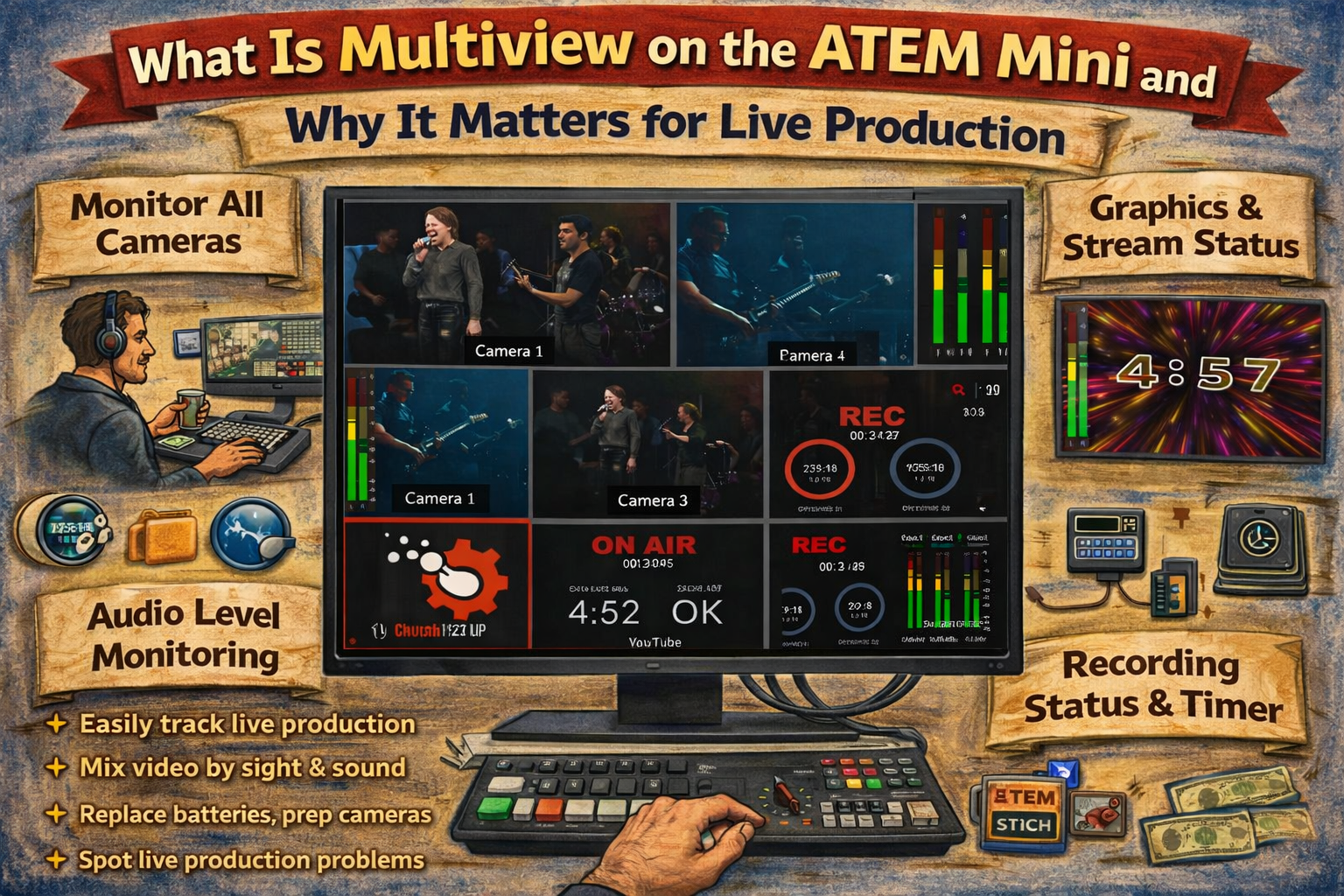
Definition of Multiview
Multiview is a built-in feature on select Blackmagic Design ATEM Mini switchers that displays multiple video sources simultaneously on a single monitor. The feature divides one HDMI display into a grid of windows, each showing a different video source, status indicator, or monitoring tool. Program output, preview output, all connected camera inputs, media player content, streaming status, recording status, and audio meters appear on one screen at the same time.
Professional broadcast control rooms use dedicated monitor walls with individual displays for each source. Multiview replicates this capability on a single consumer HDMI monitor, eliminating the need for multiple screens at the production station.
Model Support
The base ATEM Mini does not include multiview. Blackmagic Design discontinued the base model in October 2022, but units remain in circulation on the secondary market. The HDMI output on the base Mini can display program, preview, or a direct camera input, but it cannot generate a multiview grid.
Four current ATEM Mini models support multiview:
- ATEM Mini Pro ($325) — Fixed 10-window multiview layout
- ATEM Mini Pro ISO ($545) — Same fixed 10-window layout as the Pro, with added ISO recording
- ATEM Mini Extreme ($1,095) — Customizable multiview with 4, 7, 10, 13, or 16 windows
- ATEM Mini Extreme ISO G2 ($2,195) — Same customizable multiview as the Extreme, with added ISO recording and hardware upgrades
(Blackmagic Design, current pricing as of 2025)
Multiview Layout Options
ATEM Mini Pro and Pro ISO
The ATEM Mini Pro uses a fixed 10-window layout that cannot be reconfigured. Two large windows span the top of the screen, showing program (left) and preview (right). Eight smaller windows fill the bottom two rows. These eight windows display all four HDMI camera inputs, the media player, streaming status, recording status, and the audio mixer with level meters.
ATEM Mini Extreme and Extreme ISO
The ATEM Mini Extreme provides five selectable layout configurations:
- 4-window — Four equally sized quadrants filling the screen
- 7-window — A mix of large and small windows
- 10-window — Two large windows with eight smaller windows (same arrangement as the Pro)
- 13-window — The default layout on the Extreme; displays all eight HDMI inputs plus program, preview, and status views
- 16-window — Maximum density; sixteen small windows for monitoring every available source
Each window position on the Extreme can be assigned to any available source: HDMI inputs 1 through 8, program, preview, media player 1, media player 2, SuperSource, clean feed, color generators, streaming status, recording status, or audio meters. This assignment is managed through the multiview settings tab in ATEM Software Control (Blackmagic Design, ATEM Software Control documentation).
Multiview Output Configuration
ATEM Mini Pro and Pro ISO: Single HDMI Output
The ATEM Mini Pro has one HDMI output that toggles between different output modes. The front panel includes labeled buttons for selecting the output: program, preview, multiview (labeled M/V), or a direct camera input. Only one mode is active at a time. Setting the output to multiview means the program output is no longer available on that HDMI port.
A common workaround uses the USB-C webcam output. The operator connects a laptop via USB-C and runs streaming or recording software (such as OBS Studio or Ecamm Live) to monitor the program feed on the computer screen. The HDMI output remains dedicated to multiview on an external monitor at the production station.
ATEM Mini Extreme and Extreme ISO: Two Independent HDMI Outputs
The ATEM Mini Extreme has two HDMI outputs that operate independently. HDMI Output 1 is controlled by the front panel buttons. HDMI Output 2 is configured through the output routing section in ATEM Software Control.
The standard configuration assigns multiview to one output and clean program to the other. This allows the operator to monitor all sources on a multiview screen while simultaneously sending clean program output to a projector, lobby display, recording device, or confidence monitor. Both outputs can be set to multiview, but they display the same layout — different multiview configurations cannot run on each output simultaneously (Blackmagic Design, ATEM Mini Extreme documentation).
Window Contents and Indicators
Program Window
The program window shows the live output — exactly what viewers see during a stream or what a recorder captures. A red tally border surrounds the window whenever the switcher is active. The label reads “Program” or “PGM.”
Preview Window
The preview window shows the source queued to go live on the next transition. A green tally border indicates the preview state. Safe area markers are available: the outer border represents the 16:9 graphics safe area and the inner border represents the 4:3 graphics safe area. These markers can be toggled on or off.
Input Windows
Each HDMI input has a dedicated window showing the live feed from that camera or source. Red tally borders appear when an input is live on program. Green tally borders appear when an input is loaded into preview. The ATEM Mini Pro displays four input windows (matching its four HDMI inputs). The ATEM Mini Extreme displays up to eight input windows (matching its eight HDMI inputs).
Media Player Window
The media player window displays the graphic or still image currently loaded in the media player. The ATEM Mini Pro has one media player with a 20-still media pool. The ATEM Mini Extreme has two media players.
Streaming Status Window
The streaming status window displays the on-air indicator, broadcast data rate, cache/buffer status, and the destination platform name (YouTube, Facebook, Twitch, or other RTMP endpoints). This window provides real-time confirmation that the stream is active and healthy.
Recording Status Window
The recording status window shows whether recording is active, which USB disk is connected, remaining disk space, and elapsed recording time. This window confirms that local recording is functioning independently of the stream.
Audio Mixer Window
The audio mixer window displays master audio level meters along with Fairlight EQ and dynamics processing indicators. This window provides a quick visual reference for audio health without opening the full Fairlight audio mixer in ATEM Software Control.
Customization Options
Custom Labels
Each input can be assigned a custom name through ATEM Software Control. Labels appear on the multiview display, in the software control interface, and on any connected ATEM hardware panels. Effective labels use short, descriptive names — four characters display clearly in the small multiview windows. Examples include “WIDE,” “PAST,” “BAND,” and “SLID” for wide shot, pastor camera, band camera, and slides input respectively.
Audio Meters Per Window
Audio meters can be enabled or disabled on each individual multiview window. An “All On” button activates meters across every window simultaneously. An opacity slider adjusts meter transparency from fully opaque to a semi-transparent overlay. Enabling audio meters on input windows reveals which sources carry active audio, helping the operator identify unexpected audio sources or confirm that the audio feed from an external mixer is arriving.
Safe Area Markers
Safe area markers are available on the preview window. The outer guide marks the 16:9 graphics safe area. The inner guide marks the 4:3 graphics safe area. These guides help verify that lower thirds, logos, and other graphics remain within the visible area on all display types.
Tally Borders
Red and green tally borders activate automatically. Red indicates the source is live on program output. Green indicates the source is loaded in preview. Tally borders cannot be disabled and provide immediate visual identification of the live and queued sources.
Applications in Live Production
Single-Operator Monitoring
Multiview enables one person to monitor all camera feeds, the program output, and the preview output from a single screen. The operator sees every source at a glance and can make switching decisions without looking away from the monitor. In professional broadcast, this role is performed by a technical director watching a wall of dedicated monitors. Multiview compresses that monitor wall into one display.
Confidence Monitoring
The program window in multiview confirms what viewers are receiving. The streaming status window verifies that the network connection is stable and data is flowing. The recording status window confirms that local backup recording is active. Audio meters confirm that sound levels are within acceptable range. These indicators provide continuous assurance that the production is functioning correctly.
Error Prevention
Tally borders make it immediately obvious which source is live, preventing the operator from accidentally cutting to a camera that is already on program. The preview window allows visual verification of the next shot before executing a transition. Safe area markers prevent graphics from being clipped on certain displays. The streaming status window alerts the operator to bandwidth degradation or connection loss before viewers report problems.
Church-Specific Applications
Volunteer-Operated Productions
Churches frequently staff production positions with volunteers who operate equipment on a weekly or rotating basis. Multiview reduces the learning curve by presenting all essential information on one screen. Color-coded tally borders (red for live, green for next) are intuitive for operators at any experience level. Custom input labels (“PASTOR,” “WIDE,” “SLIDES”) eliminate the need to memorize camera numbers.
Monitor and Output Configuration for Worship Spaces
The ATEM Mini Extreme’s dual HDMI outputs address a common church need. One output drives the multiview monitor at the production station. The second output sends clean program video to a lobby display, overflow room, cry room, or recording device. The ATEM Mini Pro requires a workaround for this configuration because its single HDMI output handles only one signal at a time.
A monitor of at least 24 inches is recommended for comfortable multiview reading. Monitors in the 27- to 32-inch range provide the best clarity for smaller multiview windows. IPS panels offer wider viewing angles, which is useful when multiple volunteers need to see the screen from different positions.
Practical Setup Recommendations
Input labels should be updated whenever camera assignments change between services or events. Audio meters should be enabled on the program output window at minimum. The streaming status window should remain visible in the multiview layout at all times. On the ATEM Mini Extreme, the 10-window or 13-window layout is generally more practical than the 16-window layout, as 16 windows become difficult to read on monitors smaller than 32 inches.
Product Integration
Several churchsetup.com kits include ATEM Mini models with multiview capability:
- The ATEM Mini Pro 3-Camera Streaming Kit pairs an ATEM Mini Pro with three cameras, providing the fixed 10-window multiview for monitoring all inputs during a three-camera worship production.
- The ATEM Mini Pro 4-Camera Streaming Kit includes an ATEM Mini Pro with four cameras, filling all four input windows on the multiview display.
- The Move-4K 3-Camera PTZ Kit with ATEM Mini Pro combines PTZOptics Move 4K cameras with an ATEM Mini Pro. PTZ cameras controlled via IP or serial connection benefit from multiview monitoring because the operator can verify each camera’s framing on the multiview screen before cutting to it.
- The Move-4K 4-Camera PTZ Kit with ATEM Mini Extreme pairs four PTZ cameras with an ATEM Mini Extreme. The Extreme’s customizable multiview and dual HDMI outputs provide dedicated multiview monitoring on one screen and clean program output on a second display.